



How to Get BMC G2S and GII Reports on Your Phone
November 28, 2026 2026-11-28 14:02How to Get BMC G2S and GII Reports on Your Phone

How to Get BMC G2S and GII Reports on Your Phone
BMC device help · Phone reporting
Want to see your BMC therapy report on your phone? For G2S and GII devices with iCode QR reporting, the starting point is the code on the machine’s screen. This guide helps you find the reporting option, choose the right app and share the results.
You need: your BMC device, a phone with internet access and PAP Link with iCode QR or QR+ support for your device.
BMC G2S and GII reports can help you prepare for a follow-up appointment without bringing the machine along. The phone workflow uses a code generated by the device. Menu names and app screens vary, so start by checking what your own machine displays.
Use PAP Link for your phone report
Use PAP Link from BMC Medical and look for iCode QR/QR+ in the app. This guide follows the screen-code reporting workflow for BMC G2S and GII devices that offer that feature.
View BMC’s PAP Link app resources. If the iCode scanner is missing, send us your exact device model and a screenshot of the app so we can help you find it.
How to generate your BMC report on a phone
1. Open the device’s reporting menu
With therapy stopped, open the patient menu and look for iCode. Display iCode QR or iCode QR+, according to the options on your model.
2. Open the app’s iCode scanner
Sign in or register if prompted. Choose iCode QR/QR+ in PAP Link and allow camera access.
3. Scan the code on the screen
Keep the full screen code in view. Use the device’s reporting code, rather than the serial-number label on the machine.
4. View and share the report
Select the available reporting period. Check the report dates before sharing. In app versions with email reporting, add your own email address and check the inbox. Sharing options depend on the version.
BMC’s PAP Link Quick Guide illustrates the iCode scan and email-report workflow. Its screenshots show an older app version, so your buttons may look different.
Watch: PAP Link phone-report walkthrough
What should I check in the report?
Start with the device details, report dates and usage period. These help you confirm that you are looking at your own device and the period you intended to share. Other information shown depends on the device and report format.
For your appointment, write down any concerns you want to discuss, such as mask discomfort or interrupted sleep, and share the report with your clinician. Keep using your prescribed settings unless your care team advises a change.
Trouble getting your report?
My phone camera does not open a report
Use the reporting scanner inside PAP Link. The normal camera may not recognise the code as a website link.
The code will not scan
Clean the phone lens, reduce glare on the device display and hold the phone steady. Make sure the whole code is visible and the app has camera permission.
I cannot find iCode in the app
Check the publisher and app version. Send us the app name, a screenshot and your exact device model so we can help identify the right reporting route.
The report dates look old
Return to the device and display a fresh reporting code. Check the date range in the app before sending the report.
The email has not arrived
Check the address saved in the app and your spam folder. If the app has a report-sharing option, use that to send it to your own address.
My machine looks different from the video
Check the model name on your machine. GII and G2S menus, firmware and app versions can differ; follow the reporting options shown on your own device.
Check which BMC device you have
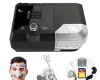
These pages show common models sold by RespBuy: G2S A20 Auto CPAP, GII Auto CPAP and G2S B25T BiPAP. Use the model printed on your device when requesting help.
Frequently asked questions
Can I get a BMC report without pairing Bluetooth?
The iCode QR workflow uses a code displayed on the device and scanned in PAP Link. Start with the iCode reporting option; Bluetooth pairing is not a step in this screen-code workflow.
Should I scan the sticker underneath the machine?
No. Open the iCode reporting screen on the device and scan the reporting code shown there. The product or serial-number sticker identifies the machine.
Which PAP Link option should I use?
Choose iCode QR/QR+ to scan the reporting code displayed on your device. If the scanner is missing, contact RespBuy with your device model and an app screenshot.
Will my report update automatically every night?
A screen-code scan captures the information available through that reporting code. Generate and scan a fresh code when you need an updated report; do not assume this is automatic nightly syncing.
Can I send the report to my doctor?
Yes, use the email or sharing feature available in your app version. Check the report dates and recipient address first.
What should I send RespBuy if I am stuck?
Send your exact device model, the app name and a screenshot of the step where you need help. You can contact our support team using the link below.
Need help finding your report?
Tell us your BMC model and which app you are using. We will help you find the right reporting option.
Get help from RespBuyFurther reading: BMC GII device and reporting features · BMC PAP Link app resources